
Business email migration: pitfalls and how to avoid them
What goes wrong in a business email migration and how to check it: SMTP relay devices, shared mailboxes, what tools skip, MX and TTL, and a cutover checklist.
By UNIXDEV Team · 20 min read
Original published · English edition
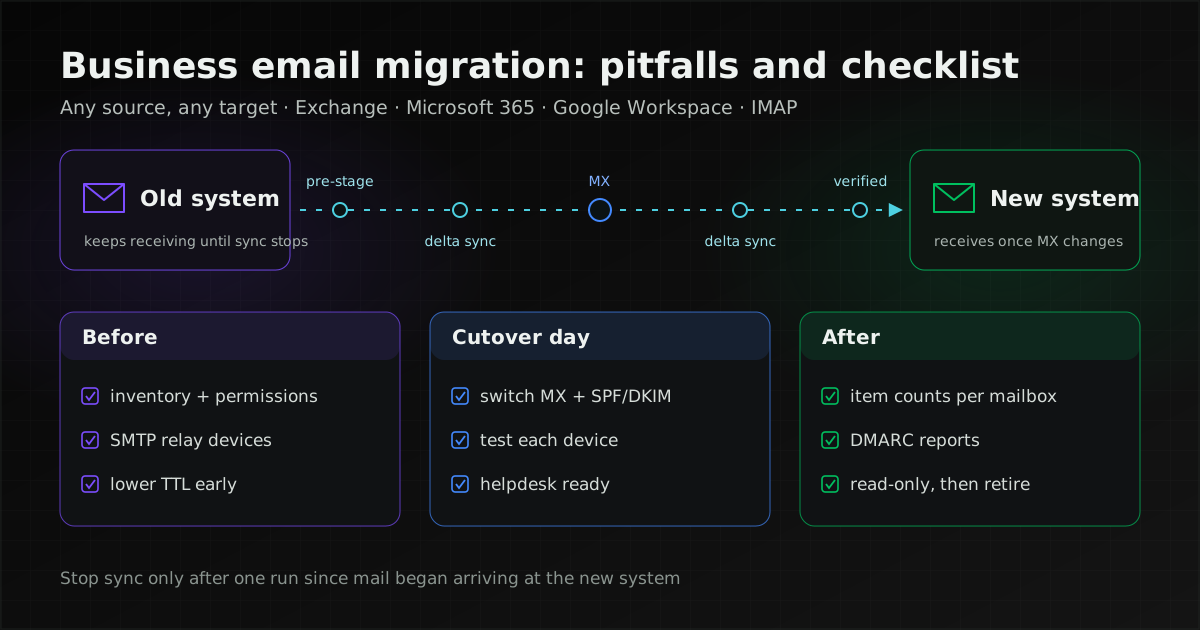
Mail can be lost in a migration at three preventable points: sync from the old system is stopped before the mail still arriving there has been collected, nobody checked what the chosen tool does not move, and devices or applications that send through the old server are forgotten.
The pitfalls below apply whatever you move from and to: Exchange, Microsoft 365, Google Workspace, Zimbra, IceWarp, Lark or any other IMAP server.
An email migration here means three things that have to switch together: mailbox data (mail, calendars, contacts, permissions), mail routing (MX records, and SMTP relay: the intermediate server that accepts mail from devices and forwards it), and the clients people read mail in (Outlook, phones, webmail). The moment inbound mail is switched to the new system is the cutover.
What commonly goes wrong in an email migration
Seven problems come up often: mail lost during the MX change; calendars, contacts, rules or signatures left behind; SMTP-relay devices that stop sending; lost shared-mailbox or delegate access; outbound mail landing in spam; item counts that do not match because of retention policies; and users who cannot open mail on day one.
The table gives the cause and the check for each; the sections after it give the sources, phase by phase.
| Problem | Cause | Prevent or check |
|---|---|---|
| Mail sent during the MX change disappears | Senders still cache the old MX for its TTL, so mail keeps arriving at the old system, and sync is stopped before that mail is collected | Lower TTL in advance, keep delta syncs running after the MX change, stop sync only once all mail lands on the new system |
| Calendars, contacts, rules or signatures do not arrive | IMAP copies move mail only, and other tools have their own exclusions | Read your tool's "not migrated" list and plan a separate move or user re-creation for each item |
| Scanners, ERP or alerting systems stop sending mail | Devices still point at the old server, or cannot use the authentication the new system needs | List every SMTP relay sender and test each one before cutover |
| Shared mailboxes or delegate access go missing | Some tools turn shared mailboxes into regular ones, or leave permissions to be set again afterwards | Export all permissions before the move and re-apply them from that list |
| Outbound mail lands in spam after the move | SPF, DKIM and DMARC still describe the old system | Update the records before live sending, then read DMARC reports |
| Item counts do not match and nobody can say why | Retention or archive policies deleted or moved items while the tool was copying | Pause those policies for the migration and keep per-mailbox count reports |
| Users cannot open mail on day one | Outlook profiles and phone accounts still point at the old system, or use sign-in the new system rejects | Set up Autodiscover, prepare user guides and staff a helpdesk on cutover day |
Before the move: what to inventory
Inventory everything that receives, sends or reads mail, not only the mailbox count. The list becomes your scope, your acceptance criteria and your cutover-day test plan.
- Every mailbox type: user mailboxes, shared mailboxes and resource mailboxes (rooms, equipment), with the size and item count of each.
- Addresses that are not mailboxes: aliases, distribution lists and server-side forwarding rules.
- Permissions: who is a delegate for whom, and who can open which shared mailbox or calendar, at what level.
- Data outside the server: archives and PST files on users' machines, which tools that read from the server never see.
- Clients: the Outlook versions in use, phones connected over ActiveSync or IMAP, and webmail users.
- Senders that are not people: scanners, ERP, monitoring, websites and applications that send through the old server.
Mailbox sizes affect the choice of tool, because each tool has its own ceilings. Microsoft's IMAP migration moves up to a fixed number of items per mailbox, newest first, and Google's data import tool drops attachments when a message plus attachment is over its size limit. The figures are in the vendor status table.
Then decide what not to move, such as mailboxes of people who have left, or old mail that can be kept as a separate archive. Less data means shorter sync runs, but agree it with the data owners and legal first. For organisations in Thailand, the log retention a mail server operator owes under the Computer Crime Act is covered in Zimbra vs IceWarp, and the Personal Data Protection Act (PDPA) rules on transferring personal data abroad are in the data-location section of our cloud migration guide.
Devices and applications that send through SMTP relay
Scanners and line-of-business applications create mail but cannot deliver it; they need a mail server. Microsoft's documentation says so plainly: these devices are not email servers. Every one still configured for the old server stops sending the moment that server goes away.
Microsoft and Google both document several ways for devices to send, each with its own conditions:
- Microsoft 365: client SMTP submission authenticates with a mailbox and needs TLS 1.2 or later; if a device recommends or defaults to port 465, the documentation says it does not support the required TLS versions. The alternatives are SMTP relay through a connector authenticated by a static, unshared IP address or a certificate, and Direct Send, which reaches internal recipients only.
- Google Workspace: Google's documentation lists three: the SMTP relay service authenticated by IP address, the Gmail SMTP server with an app password, and the restricted Gmail SMTP server, which delivers only to Gmail or Workspace users.
- SPF: Microsoft says to add the device IP to the domain SPF record when it sends through an IP-based connector, and Google says the SPF record must include the IP or domain of a device sending through the restricted Gmail SMTP server; otherwise the mail may go to junk or be rejected.
Check older devices first, because they may not support the TLS level or sign-in method the new system requires. Test from each real device during the pilot. If a device cannot comply, one option is an internal relay that accepts its mail and forwards it to the new system in a way that system supports.
Shared mailboxes, delegates and permissions
Permissions between mailboxes are easy to lose, because many tools move content but not the relationships between mailboxes.
- Google's GWMME migrates shared mailboxes as regular mailboxes and has you turn on Gmail delegation after the migration.
- Google's Exchange Online import does not import shared folders, and its default method does not support calendar permissions.
- Microsoft's cutover migration moves only mailboxes, mail users, mail contacts and mail-enabled groups with their membership; any other Active Directory object set as a manager or delegate of a migrated object must be removed first.
- Microsoft's Google Workspace migration does not move shared calendars or room bookings.
The fix is the same whichever tool you use: export every permission from the old system to a file before the move, and use that file as both the set-up list and the post-move check list.
DNS and MX: why mail is lost or delayed during the switch
Mail does not move to the new system the moment you edit the MX record, because sending servers remember the old MX for its TTL. During that window some mail still lands on the old system, and it is lost unless something carries it across.
The TTL (time to live) is how long a DNS record may be cached before the source is asked again (RFC 1035), and RFC 2181 makes clear it is a maximum, not a mandatory, time.
In practice you lower the TTL at least one old-TTL period before the change; otherwise some senders still hold the old MX with its long TTL on cutover day. Microsoft's cutover guidance says to lower the TTL on every MX record before starting and raise it again after the final switch.
What keeps mail from being lost meanwhile is SMTP itself. RFC 5321 has senders try MX hosts in preference order (lower numbers first) and, on a temporary error, queue the message and retry: the retry interval SHOULD be at least 30 minutes and the give-up time generally needs to be at least 4–5 days.
A server that is briefly unreachable therefore delays mail; a server that accepts mail which nobody then moves loses it.
So during the MX change you need two things: the old system still accepting mail, and delta syncs still copying from old to new. Microsoft's documentation says mail for migrated users keeps going to the old mailboxes until the MX record changes, and Google's MX guide says to remove the old MX records, because keeping them can stop mail working correctly.
Removing the old MX from DNS does not stop mail reaching the old server at once. Microsoft's cutover guide explains that senders' systems remember where your mail system is for the TTL, and if you change it before the TTL expires they try the old location first. The old system must therefore keep accepting mail even after it is gone from the MX records. Microsoft and Google each state how long other systems may take to pick up a new MX (see the table).
Other DNS changes that go with it:
- Autodiscover or client-configuration records: Microsoft has you create an Autodiscover record pointing at the new service so Outlook and phones find the new mailbox on their own. Other platforms have their own mechanism; check the target system's documentation.
- SPF, DKIM and DMARC: SPF (RFC 7208) must include the new system's sending servers and any device relay; DKIM (RFC 6376) needs keys generated on the new system; DMARC (RFC 9989) shows you the result after the switch. Record-by-record detail for a migration is in Zimbra vs IceWarp.
Moving the data: pre-stage, delta sync and what tools leave behind
The way to keep downtime short is to copy most of the data ahead of time while users keep working on the old system (pre-staging), then sync only what changed (delta sync), repeatedly, up to cutover and after the MX change.
Many tools can be re-run without creating duplicates, but the details differ. Google's delta import copies only new or changed items and never removes data already imported, but exiting an import and starting a new one duplicates contacts. imapsync, an open-source tool for copying between IMAP servers, can be stopped and restarted without generating duplicate messages. Microsoft's IMAP migration synchronises source and target once a day. That difference decides whether you trigger a sync yourself on cutover day or wait for the next automatic run.
Speed also depends on the source. Microsoft recommends that, if you limited connections to the source system, you raise those limits to speed up IMAP migration: total client/server connections, per-user connections and per-IP connections, whether set on the server or the firewall. Time your own pilot rather than estimating from generic figures.
IMAP moves mail only
IMAP is a protocol for accessing and manipulating mail messages and mail folders on a server (RFC 9051), so IMAP-based tools leave calendars and contacts behind. Microsoft (its IMAP migration does not move contacts, calendar items or tasks), Google (its data import tool imports email only, including from IMAP sources) and imapsync (it cannot migrate contacts and calendars) all say the same. If the source offers only IMAP, plan a separate export of calendars and contacts, or find a tool that reads them from the source directly.
"Not migrated" lists differ by tool
Even tools that do move calendars and contacts leave some things out or change their form. Examples from the documentation we checked:
- Rules and signatures: GWMME migrates neither server nor client rules and has users re-create signatures in Gmail; Google's monitoring points for email migrations say settings, rules, filters and signatures are not imported. Microsoft migrates rules from Google Workspace but leaves them turned off.
- Automatic replies: Microsoft's Google Workspace migration does not move vacation or automatic-reply settings.
- Folders and labels: moving into Gmail turns folders into labels, and the Exchange Online import skips folders whose path is longer than its limit. Users with deep folder trees should be in the pilot.
- Contacts: GWMME does not move contact groups, distribution lists or the Global Address List, and flattens contacts from all folders into one place; Microsoft moves a limited number of email addresses per contact.
- Calendars: GWMME does not move calendar attachments or conferencing links; the Exchange Online import skips events before the import start date and gives recurring events with no end date a fixed end date.
These lists belong to the tools we checked and change between releases. If you use another tool, find its "what is migrated" page and note the date you read it. Each excluded item needs an owner who re-creates it: the administrators or the users themselves.
Status as of 2026-11-15: vendor limits and exclusions
The figures and lists below change with each tool and service. Check the source again before using them in a project plan or a TOR (the tender specification used in Thai public procurement).
| Tool or topic | What the documentation says | Source (page date) |
|---|---|---|
| Microsoft: IMAP migration to Microsoft 365 | Mail in the inbox and other mail folders only; no contacts, calendar items or tasks · up to 500,000 items per mailbox, newest to oldest · largest message 35 MB · target mailboxes must already exist · syncs once a day; let the batch run at least 72 hours before deleting it | Microsoft Learn: IMAP migration, Microsoft Learn: other IMAP mailboxes (2026-07-28) |
| Microsoft: cutover migration from Exchange Server | Up to 2,000 mailboxes, but Microsoft recommends 150 · moves only mailboxes, mail users, mail contacts and mail-enabled groups with membership · if you need security groups, create empty mail-enabled security groups first; the tool cannot tell which groups are security groups · set TTL on every MX record to 3,600 seconds or less before starting · other mail systems can take up to 72 hours to recognise a changed MX; wait at least 72 hours before deleting the batch | Microsoft Learn (2026-07-28) |
| Microsoft: Google Workspace to Microsoft 365 | Moves mail, rules, calendars and contacts · does not move vacation and automatic-reply settings, room bookings, shared calendars and event colours, Gmail tags, contact URLs and custom tags · up to three email addresses per contact · rules arrive turned off · default message size limit 35 MB | Microsoft Learn (2026-10-14) |
| Google: GWMME (Exchange, IMAP, PST to Google) | No server or client rules, signatures, message importance or categories · calendars: no rich text in descriptions, attachments or conferencing links · contacts: no contact groups, distribution lists or GAL; contact folders flattened; notes over 16 KB truncated · no notes, tasks or journal · folders become labels · shared mailboxes become regular mailboxes · turn on delegation after migration | Google (2026-11-10) |
| Google: data import tool | Imports email only (including drafts and sent), most attachments and read status · IMAP sources bring folders and subfolders · attachments left out when message plus attachment exceeds 25 MB or the file type is blocked by Gmail · users per import: IMAP 100, Exchange Online 1,000, Google Workspace 1,000 · imports only into existing accounts; does not create them · monitoring points page: settings, rules, filters and signatures are not imported | Google: data import tool, Google: monitoring points (2026-11-10) |
| Google: import from Exchange Online | Not imported: messages over 150 MB, categories, shared folders, flagged or pinned status · events before the import start date and ICS files · contact lists, mail contacts and GAL · default method supports neither calendar permissions nor In-Place Archives · recurring events with no end date get an end date of 31 December 2099 · folder paths over 225 characters are skipped · delta import never removes imported data, but starting a new import duplicates contacts | Google: Exchange Online import, Google: delta import (2026-11-10) |
| imapsync (open source) | Cannot migrate contacts and calendars · can be stopped and restarted without duplicates · standard IMAP cannot create accounts, so target mailboxes must exist · IMAP UIDs cannot be carried across servers | imapsync, FAQ (checked 2026-11-15) |
| Google: MX records | New MX records can take up to 72 hours to be recognised · remove any other MX records | Google (2026-11-10) |
| Client and device sign-in | Microsoft: Basic authentication is disabled in all Exchange Online tenants, which also blocks app passwords for apps without two-step verification · SMTP AUTH Basic auth is unchanged through December 2026 and disabled by default for existing tenants at the end of December 2026 (can be re-enabled) · Google: since 1 May 2025 Workspace accounts no longer support apps or devices that sign in with a username and password; OAuth is required | Microsoft Learn (2026-07-16), Microsoft Exchange Team Blog (2026-01-29), Google (2026-11-10) |
Users and clients: preparing for day one
On day one after cutover, Outlook and phones may still hold the old system's settings, so users can be locked out even when every message has arrived. Preparing the user side matters as much as moving the data.
- Outlook: Microsoft's cutover guide has you send users a welcome letter on how to sign in to their new mailboxes, refers you to its guide on creating new Outlook profiles, and has you create an Autodiscover record so Outlook and phones find the new mailbox. Other targets may use their own plug-in or connector; test with the Outlook versions you actually run during the pilot.
- Phones: Microsoft says a mail app still using Basic authentication may need the account removed and added again, and Google rejects username-and-password sign-in from apps that do not use OAuth. The user guide should include removing and re-adding the account on iOS and Android.
- Passwords: if the tool cannot open source mailboxes with administrator credentials, Microsoft says user passwords must be reset, and users who do not know the new password cannot reach their old mailbox during or after the move. Warn users in advance if you have to do this.
- Rules and signatures: tell users beforehand what they will need to re-create, from your tool's exclusion list.
The lower-risk order is a pilot group first, chosen to include Outlook, phone, webmail and shared-mailbox users. Before cutover, tell everyone the schedule, what they must do and how to reach the helpdesk, and staff it on cutover day and the first working day after.
Rollback and running both systems side by side
The old system must keep accepting mail and keep syncing to the new one until you have confirmed that all mail lands on the new system. Stop sync before then and mail still arriving at the old system is never copied across; the old system, still running, is also your rollback path.
Microsoft's cutover guide sets two conditions before deleting a migration batch, and they work as a rule of thumb for other tools: every user is on the new mailbox, and a sync has run after mail started arriving at the new system directly. The IMAP migration guide spells out the consequence: once the migration batch is deleted, mail sent to mailboxes on the old system is no longer copied, and users do not get it.
- Rollback criteria: agree before cutover day which symptoms trigger a rollback, who decides, and until when rollback is possible. General go/no-go principles are in the cutover and rollback section of our cloud migration guide.
- Reverse sync: if MX is pointed back at the old system, mail that reached the new one in the meantime has to be synced back too. Test that path during the pilot.
- Read-only period: after sync stops, make the old system read-only. How long is your organisation's decision, based on the rollback window, log and data retention requirements, and the time needed to finish checks. No single figure fits every organisation.
- Decommissioning: decommission only after checks pass and logs or backups are kept as required. Microsoft warns that decommissioning on-premises Exchange can have unintended consequences; check whether anything still depends on the old server, such as devices sending through it.
What to check after cutover
Check two things separately: mail flows in every direction, and mailbox data arrived complete. Data checks need numbers, not users opening folders to see whether things look right.
- Mail flow: send test messages internally, inbound from outside and outbound, including from every relay device and application. Check queues and bounces on both the old and new systems.
- Item counts per mailbox: both vendors' tools report them. Microsoft's migration users report shows items synced, items skipped (with per-item detail) and a data consistency score; Google's migration reports show emails imported, emails failed and IMAP folders that could not be crawled. With imapsync, the
--justfoldersizesoption counts messages per folder without copying, per the imapsync FAQ. - Counts skewed by policy: Microsoft explains that if retention or archive policies delete or move items during the migration, the tool flags them as "missing": perceived rather than actual data loss, which makes real loss much harder to find. Microsoft strongly recommends disabling those policies before migrating.
- Calendars and permissions: check shared calendars, room bookings, delegates and shared mailboxes against the permission list you exported before the move.
- DMARC reports: read aggregate reports (RFC 9990) after the switch to find servers or devices still sending as your domain that fail SPF or DKIM.
Email migration checklist: before, cutover day and after
Use these items as deliverables and acceptance criteria in a project plan or a TOR. Each item should have an owner and evidence that can be checked.
Before the move
- Inventory sheet: mailbox, type (user, shared, resource), size, item count, aliases and groups, delegates and permissions
- List of devices and systems that send mail, with the sending method on the new system and a test result for each
- List of what the tool does not move, citing the dated documentation page, with an owner for re-creating each item
- What was agreed not to move, and how that data will be kept
- DNS change log: record, old value, old TTL, new value, and when the TTL was lowered (at least one old-TTL period before cutover)
- Retention and archive policies to pause during the migration
- Pilot result: Outlook, phone, webmail and shared-mailbox users working, and reverse sync tested
- Rollback criteria, decision owner and user communication plan
Cutover day
- Delta sync before the MX change
- Change MX, Autodiscover or client-configuration records, SPF and DKIM per the DNS change log
- Reconfigure relay devices and systems from the list, and test each one
- Test internal, inbound and outbound mail
- Helpdesk ready with Outlook and phone set-up guides
- Delta syncs continuing after the MX change
After the move
- Per-mailbox item counts before and after, with an explanation for every skipped or failed item
- Confirmation that a sync ran after mail started arriving directly at the new system, before sync is stopped
- Delegates, shared mailboxes and shared calendars match the exported permission list
- DMARC aggregate reports show no sending source that is missing from the inventory or the sending-device list
- TTLs raised back to normal values
- Old system read-only for the period the organisation set, then decommissioned after logs and backups are kept as required and written approval is given
How UNIXDEV helps with email migration
UNIXDEV plans and carries out email migrations from Exchange, Zimbra or IMAP mailboxes as part of our digital workplace and collaboration platforms service. The work covers moving mailboxes and groups, DNS and TLS, SPF, DKIM and DMARC, piloting with representative users, a cutover plan with a rollback path, user training, and backups after go-live. Any downtime target is a figure your organisation sets and we plan towards together.
Sources and further reading
- Microsoft — Cutover migration · IMAP migration · Migrate other types of IMAP mailboxes · Google Workspace migration · Migration users status report
- Microsoft — Send email from a multifunction device or application · Basic authentication deprecation · SMTP AUTH Basic auth timeline
- Google Workspace — What's migrated with GWMME · Data import tool · Exchange Online migration · Delta import · Monitoring points · Migration reports
- Google Workspace — Send email from a printer, scanner or app · Set up MX records
- imapsync · imapsync FAQ
- RFC 1035 (DNS) · RFC 2181 · RFC 5321 (SMTP) · RFC 9051 (IMAP4rev2)
- RFC 7208 (SPF) · RFC 6376 (DKIM) · RFC 9989 (DMARC) · RFC 9990 (DMARC aggregate reporting)
- Related: Zimbra vs IceWarp
- Related: IceWarp vs Microsoft 365, Google Workspace and Lark
- Related: cloud migration in Thailand
- Related: migrating data from a legacy system
- All articles on the digital workplace
Sources checked on 2026-11-15
How we checked: based on the primary sources above, reviewed by the UNIXDEV team